See how Laser Job Manager works
Browse the workflow for quoting, jobs, supplies, recipes, and profit tracking so you can see how the app fits real shop work before you download.
Creating a Job & Attaching Files
See the core workflow: add a customer, create a job, attach design files, set a deadline and price. LJM organizes everything automatically as you go.
Customer Calls Back for a Reorder
A repeat customer calls in. Search their name, find the original job with all files and cut settings, and duplicate it in seconds.
Quote Generator & PDF Output
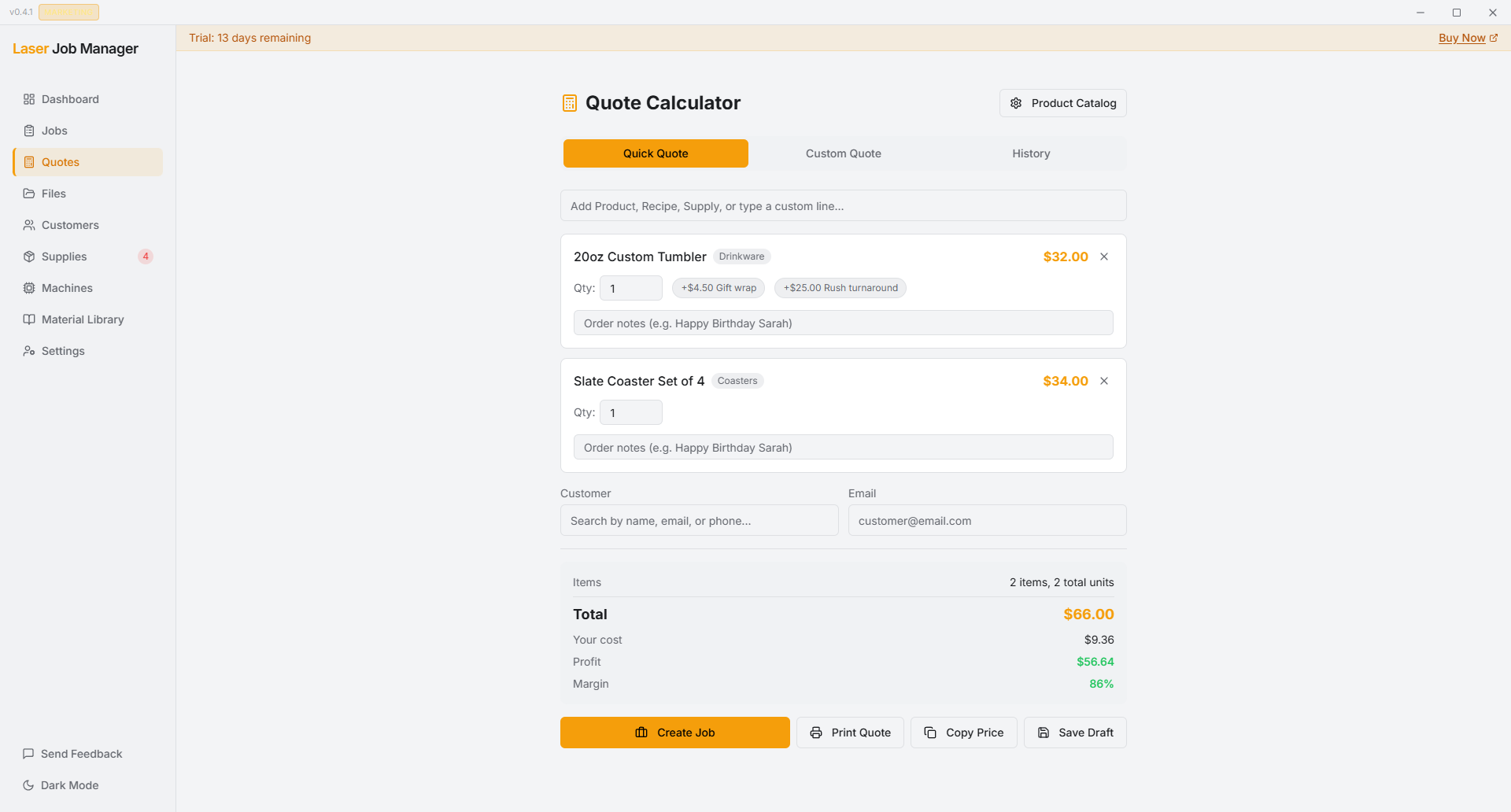
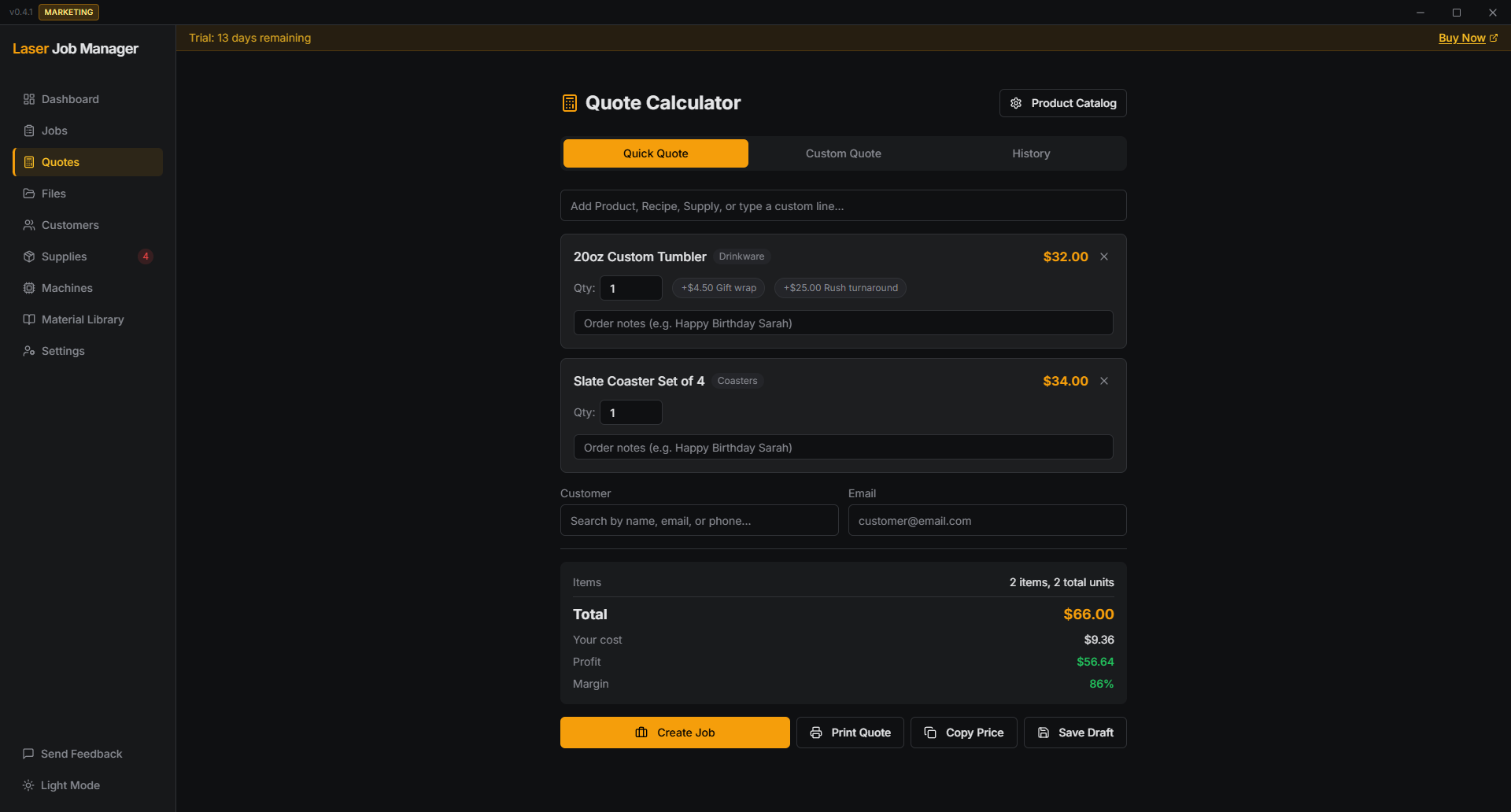
Build a quote from your product catalog, add line items and modifiers, then generate a professional PDF to send to your customer. When they approve, convert it to a job in one click.
Material Cut-Settings Library
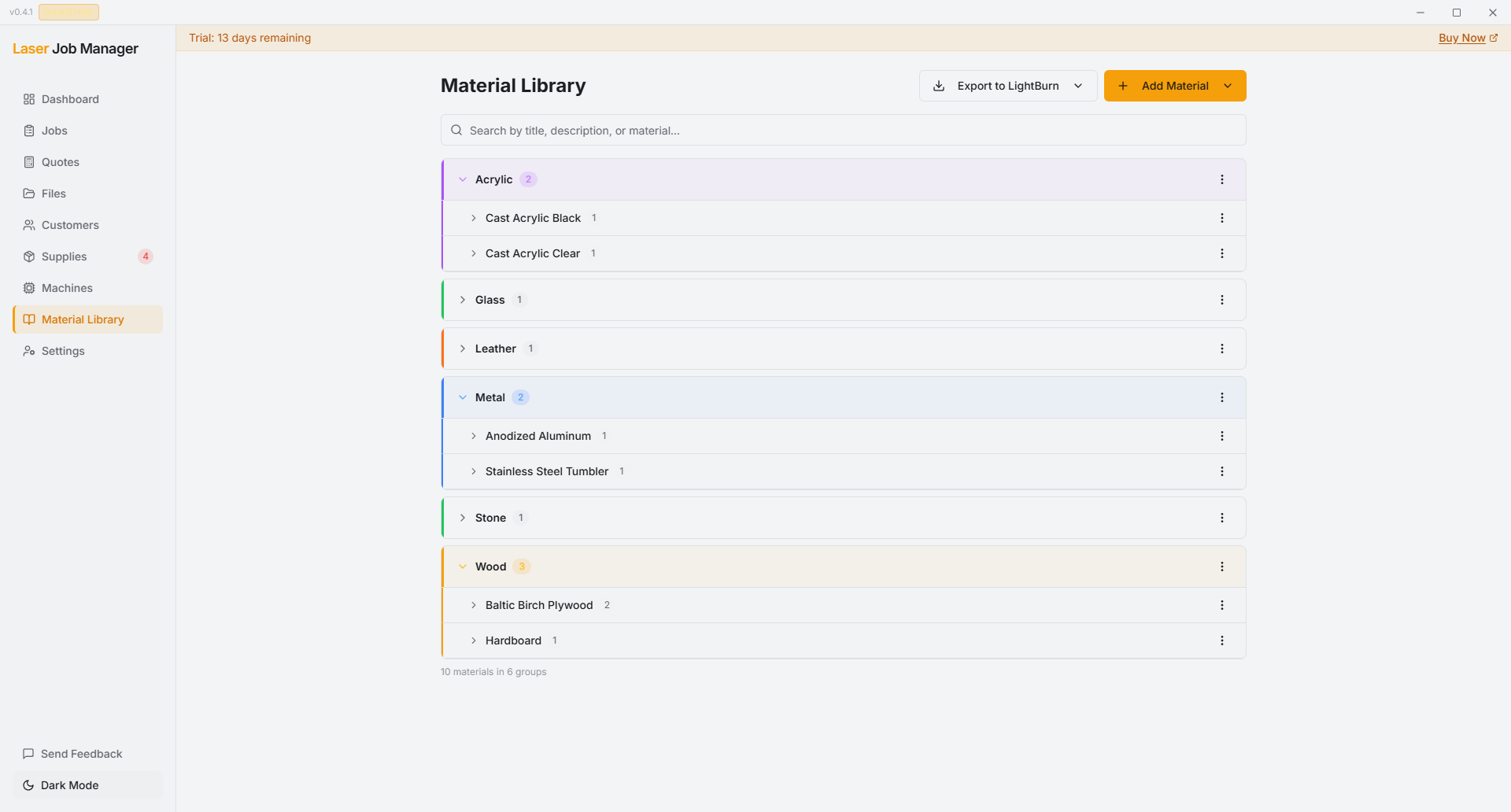
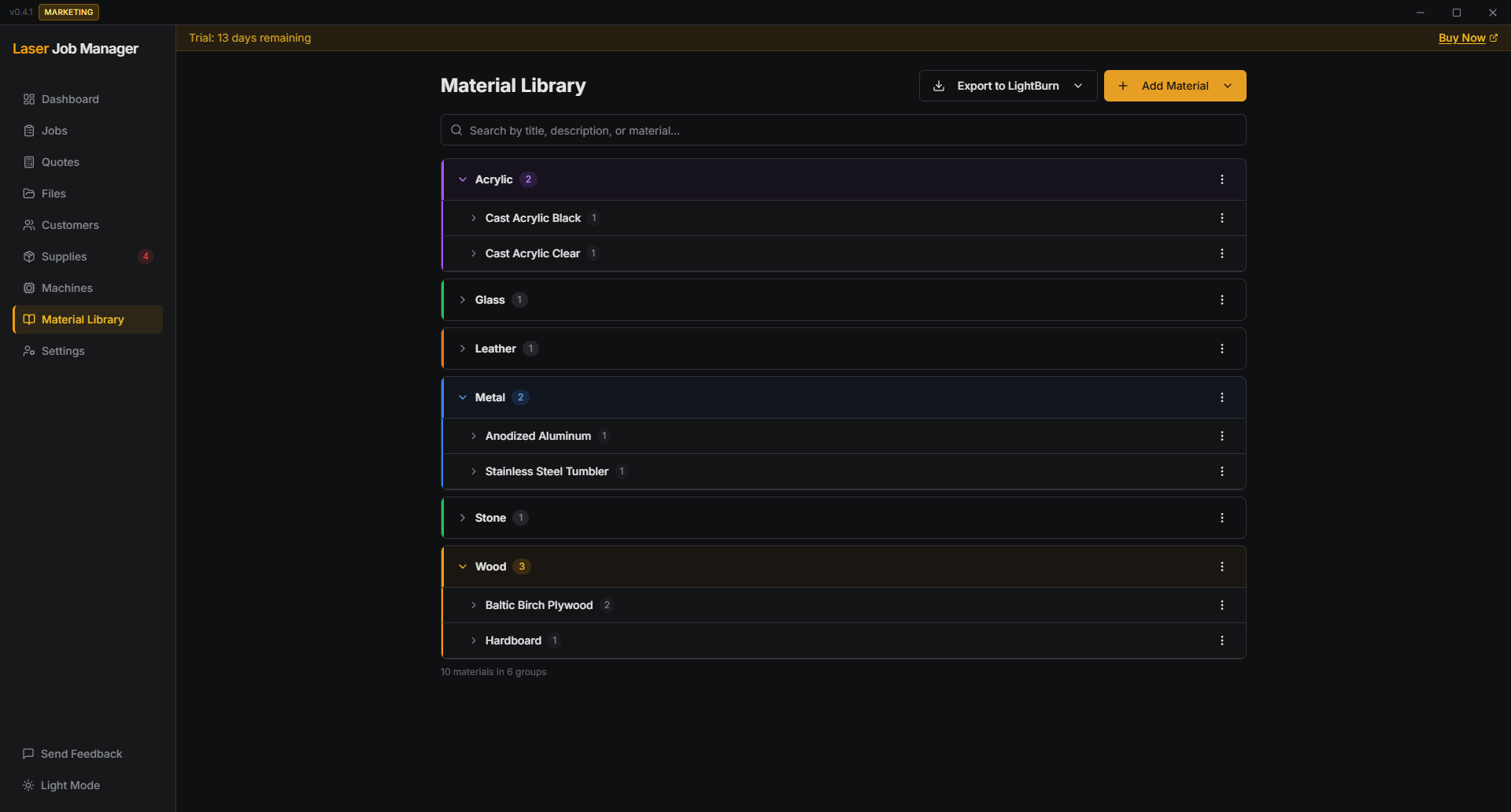
Build a searchable library organized by material and thickness. Import your existing LightBurn cut settings from .clb, .lbdev, and .lbrn2 files. Find what worked in seconds.
Track Supplies & See Job Profit
Add the blanks, sheet goods, and consumables you use to each job as you go — or let a recipe group the supplies automatically so costing and fulfillment stay consistent for repeat jobs. Mark a job complete and LJM subtracts supply cost from what you charged and shows your profit per job, the moment you mark it done. Low-stock alerts tell you when to reorder before you run out mid-job.
Ready to try it?
If this looks like the way you already work, try it on a real job.